
How to Create and Verify a Bitget Account
Register through referral code 6LRW9LTY, complete identity verification and enable account protection.
Create a Bitget AccountOpen the EA Tester Bitget referral link
Use the Bitget registration page and confirm referral code 6LRW9LTY before finalizing registration.
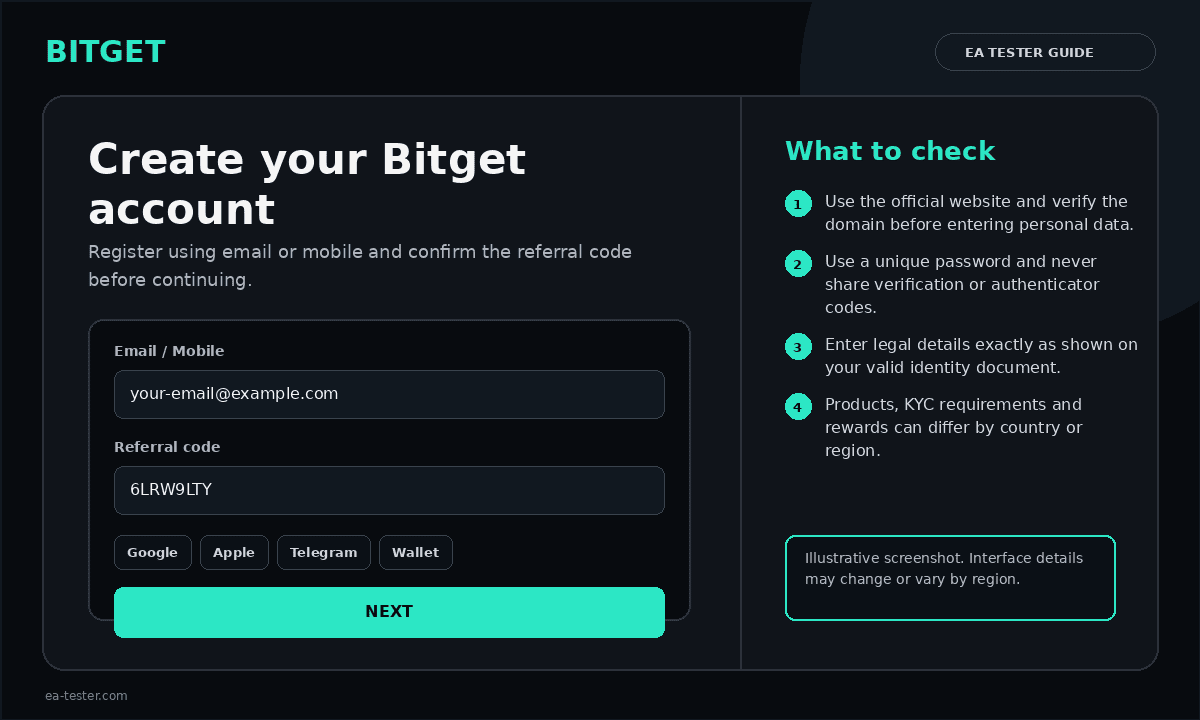
Choose email or mobile registration
Enter an active email address or mobile number. Bitget may also show alternative sign-up methods such as Google, Telegram or a compatible wallet.
Create a strong password and pass the security check
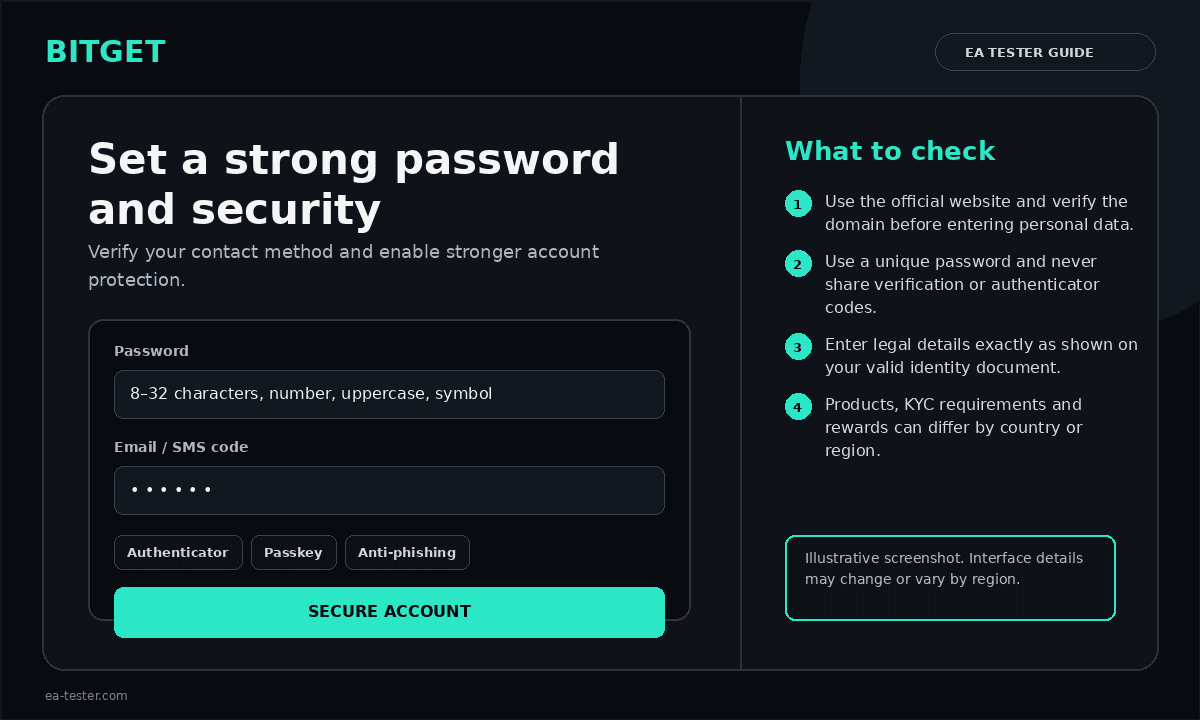
Use a unique password. Bitget currently describes a password length of 8–32 characters with a number, uppercase letter and special character. Complete any captcha or security puzzle shown.
Confirm the email address or phone number
Enter the six-digit verification code sent by email or SMS. Do not share this code with anyone.
Open Identity Verification
Log in, open the profile menu and select Identity Verification. Choose individual verification and select Verify.
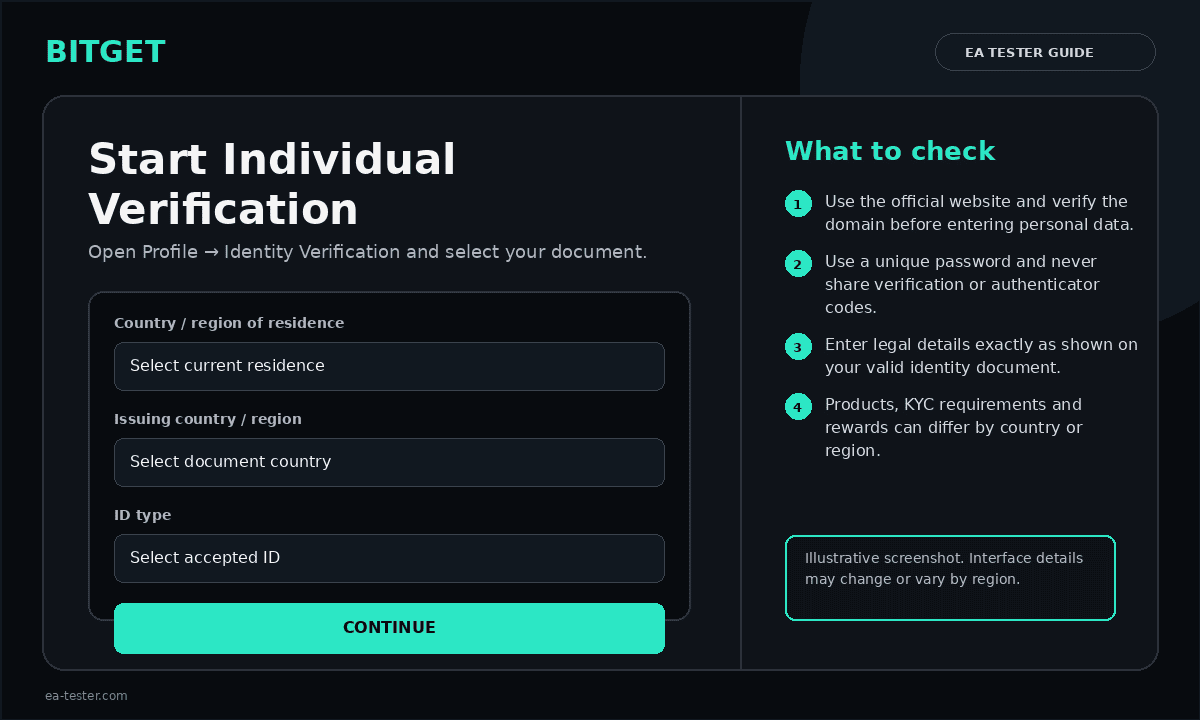
Select country, document and personal details
Select the issuing country or region and an accepted ID type. Enter your legal name exactly as shown on the document.
Upload the ID and complete facial recognition
Use clear, uncropped images of the original document. Ensure the full name and date of birth are readable. Follow the facial-recognition prompts in good lighting and avoid items that cover your face.
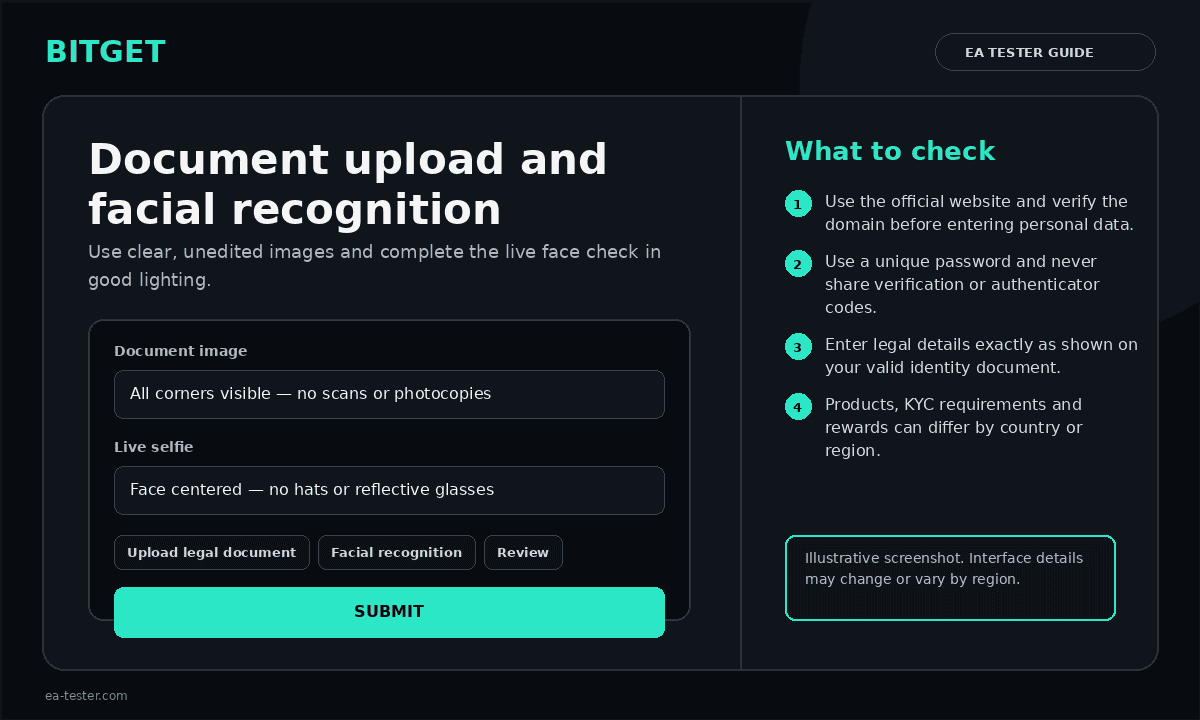
Submit and monitor the verification status
After submission, check the Identity Verification page and your email for approval or requests for additional information. Processing and requirements can differ by region.
Enable additional security
Open the Security section and enable an authenticator app or other available 2FA method. Link both email and phone where appropriate, review devices and enable withdrawal safeguards.
Official Bitget resources
See Bitget’s official website registration guide and identity-verification guide for the current interface and regional instructions.